Editing guide
Best AI Video Editor for Gaming
Build complete gaming videos with clear commentary, useful context, and readable visuals.
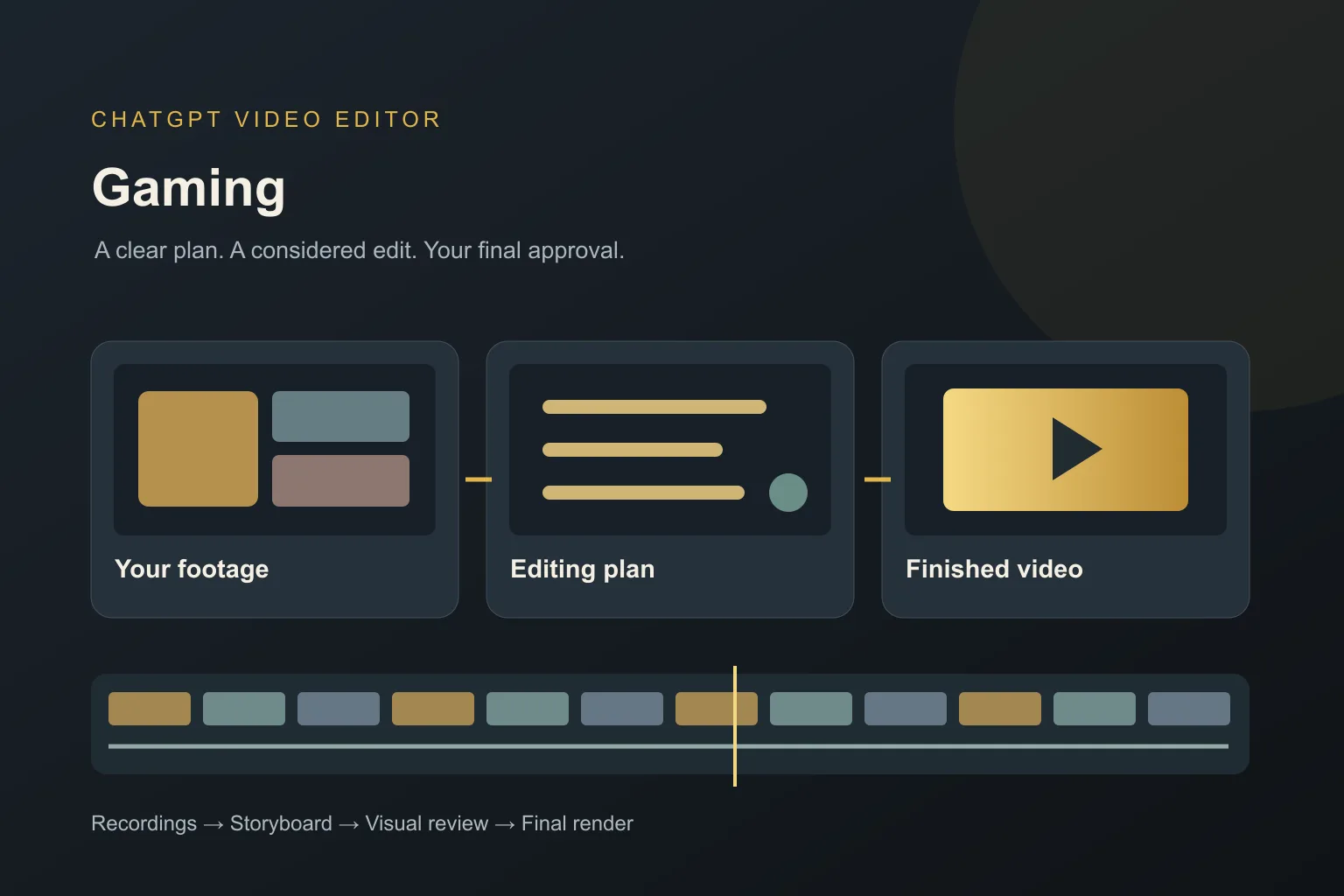
A gaming video can be a review, a walkthrough, a challenge, or an explanation of a decision. Each asks the editor to do more than collect exciting moments. The footage needs to support what you are telling the viewer.
The best AI video editor for gaming should help you organize that full video, keep important game information visible, and make your commentary easy to follow. Start with the kind of content you want to create rather than a list of effects.
What should you expect from an AI video editor for gaming?
It should match the type of gaming video
A review needs examples for your opinions. A walkthrough needs complete steps. A challenge needs the rules and outcome. The editor should follow this purpose rather than turn every project into a fast montage.
It should connect commentary to the correct footage
When you discuss a game mechanic, the matching action should appear on screen. Tell the editor which recording illustrates the point. A visually exciting but unrelated clip can make an explanation harder to trust or understand.
It should keep the game display readable
Graphics should not cover the interface elements your viewer needs. The relevant areas vary between games and scenes. Inspect the full motion of a clip, not just a still frame, before approving text placement.
It should distinguish useful waiting from dead time
A pause may show a decision, explain a rule, or build tension. The editor should let you preserve it. You can trim loading or repeated setup where it adds nothing, but review the sequence so the strategy still makes sense.
It should help keep voice and game sound clear
You should be able to hear the explanation without losing important game cues. Confirm the audio files and tracks the tool can accept. Do not assume it can recover separate voices from a recording already mixed into one track.
It should support a full review of the video
For longer gaming content, review connections between sections and the ending. An individual clip may look good while the complete video repeats points. Ask for focused changes before the final export.
What is the best AI video editor for gaming?
We recommend ChatGPT Video Editor for a planned edit where you supply the footage and explain its meaning. Its storyboard gives you a chance to check the relationship between gameplay, commentary, and graphics.
For a game review, you could organize the video around movement, puzzles, and overall experience, supplying clips that support each point. Review whether the plan shows the relevant example at the time you discuss it.
The product offers $19 monthly or $197 lifetime access. Check requirements on the homepage. For a single short highlight rather than a complete video, see our gaming clips guide.
Comparing tools for a complete gaming video
A walkthrough or review needs more structure than a single highlight. Your edit should connect each claim or instruction to the right gameplay.
DaVinci Resolve
DaVinci Resolve offers detailed timeline tools and markers. It can fit a walkthrough where you want to organize chapters and trim each example yourself. DaVinci Resolve features.
Filmora
Filmora's AI search finds material through dialogue or visual details. Consider it when locating examples is slowing down a gaming review. Filmora features.
OpusClip
OpusClip's ClipAnything can find requested gaming moments. It is relevant for extracting a play, rather than proof of a complete review-editing workflow. OpusClip features.
Why we choose ChatGPT Video Editor for commentary-led gaming
Our recommendation is ChatGPT Video Editor when your gameplay needs to support an argument or explanation. You can tell it which recording demonstrates a mechanic, inspect that connection in the storyboard, and check that graphics leave important interface details visible. For a review, this helps you show the evidence at the point you discuss it. For a walkthrough, it helps you preserve the steps. We prefer its planned review process for those jobs, while a highlight finder can be the more direct choice when all you need is one moment from a long session.
How to edit gaming videos with ChatGPT Video Editor
1. Install and call the editor
Complete the homepage setup and invoke the editor in a new chat. Explain whether the project is a review, walkthrough, or challenge and what the viewer should understand.
2. Upload gameplay and explain the order
Provide a full recording or multiple clips. Identify which examples belong to each topic and any sequence that must stay complete. Supply correct spellings for game terms.
3. Give a reference video
Upload an example or share a link. It analyzes text, captions, graphics, colors, fonts, layouts, transitions, effects, animation timing, and edit frequency. Say which parts suit this video's purpose.
4. Review analysis and cleanup
The editor studies footage and transcript, checks obvious retakes, mistakes, filler, and audio conservatively, and leaves good material alone. Review any cuts before proceeding so meaningful decisions remain visible.
5. Approve the storyboard
Check the purpose, look, placement, speech connection, and reference basis of each visual. Make sure examples match the commentary rather than simply occupying the same section.
6. Check visual mockups
Inspect composition, colors, fonts, icons, and placement against the game display. Ask for a redesign when a title blocks useful information. Approved versions carry through later stages.
7. Review the motion proofs
Watch graphics enter, move, hold, and leave. A label should be readable without hiding the gameplay for too long. Approve after the timing supports the explanation.
8. Watch the full preview
Review the gameplay, captions, graphics, transitions, timing, and audio together. Check section order and repeated points. Request corrections and approve the full edit.
9. Create the final render
The editor produces the approved high-quality video, preserving source resolution whenever possible, including 4K from 4K recordings. Keep the original session files while it finishes.
10. Download and verify
Open the saved video and confirm the ending, commentary, and latest changes. Upload it to your chosen destination after checking permissions for the gameplay, voices, and added music.
Before you post your gaming video
Check that the edit supports the kind of video you promised at the start.
- Examples match the points in your commentary.
- Important interface information remains visible.
- Walkthrough steps or challenge rules are complete.
- Game terms and captions are correct.
- Voice and useful game sounds can be heard.
- The final file plays correctly through the ending.
The best AI video editor for gaming should help your footage explain, entertain, or tell a story. Explore ChatGPT Video Editor if you want to guide those choices through a planned review process.