Editing guide
Best AI Video Editor for Gaming Clips
Make a gaming highlight understandable without cutting away the moment that makes it good.
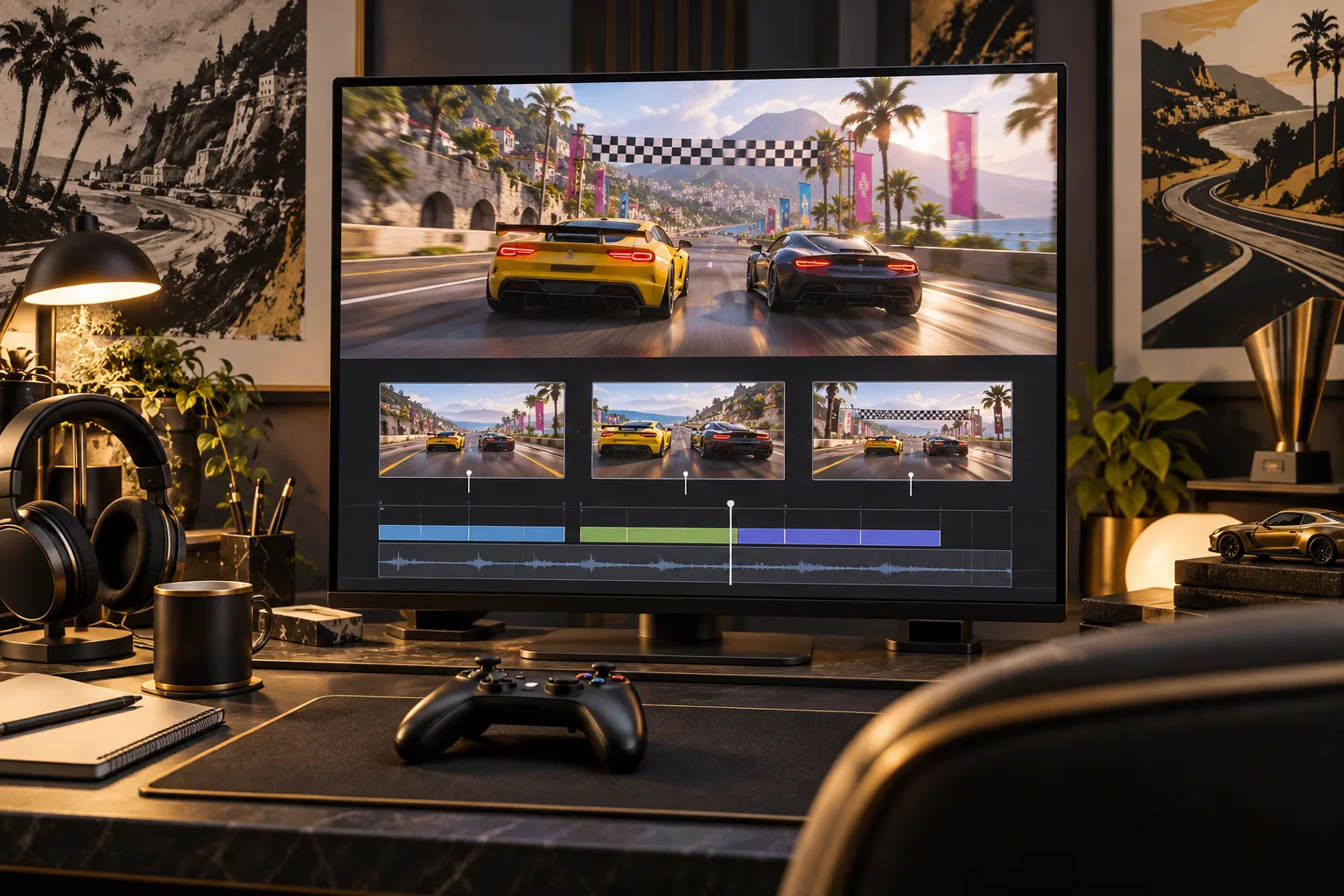
A great gaming moment usually starts before the most exciting frame. The near miss, the mistake, or the team conversation can be what makes the final result worth watching. Cutting straight to the outcome may remove the story.
The best AI video editor for gaming clips should help you keep that small story intact. You need clear action, useful context, and room for the reaction, with captions and effects placed where they do not hide the game.
What should you expect from an AI video editor for gaming clips?
It should understand which moment you want
The editor should accept your chosen clip and an explanation of why it matters. Mark the relevant time if the file is longer. Finding every important moment across an entire session is a separate capability that you should verify rather than assume.
It should keep the lead-in and reaction
A racing overtake makes more sense when viewers see the position before the move. The editor should preserve enough lead-in and the reaction afterward. Ask it not to shorten the moment so far that only experienced players can follow it.
It should leave important game information visible
Captions and graphics should avoid the part of the display needed to understand the action. The important area changes by game. Tell the editor which map, timer, or score matters in this clip and check placement throughout movement.
It should handle spoken captions carefully
Player names, slang, and game terms can be misunderstood. The editor should let you correct captions rather than display guessed words. Supply unusual spellings and check who is speaking if several voices overlap.
It should protect the timing of the action
The edit should not create a false impression of what happened. Preserve the relevant sequence and explain whether you want a recap or an uninterrupted demonstration. Avoid cuts that make a result seem to happen for a different reason.
It should show the complete clip with sound
A preview should let you judge the game audio and reactions together. Excessively loud effects can hide the commentary. Check the finished video at normal speed and on the screen where you expect people to watch.
What is the best AI video editor for gaming clips?
We recommend ChatGPT Video Editor for prompt-led editing of selected gameplay footage. Its review process is useful when the clip's meaning depends on precise moments you can identify.
For a racing highlight, ask it to keep the approach, the pass, and the finish, with one short caption explaining the situation. The storyboard gives you a chance to check that the caption arrives before it is needed and does not cover the racing line.
Plans cost $19 per month or $197 for lifetime access. Confirm file requirements on the homepage. Provide the footage and context yourself instead of relying on an unverified promise of automatic highlight selection.
Which editor should you use for a gaming clip?
Finding a highlight and editing a highlight are separate tasks. The best choice changes depending on whether you have already selected the moment.
OpusClip
OpusClip's ClipAnything supports prompts for finding gaming moments. It is relevant when you need help locating the action inside a longer recording. OpusClip features.
CapCut
CapCut Desktop supplies effects and keyframe controls. Consider it when you want to build a highlight's zooms and movement directly. CapCut features.
Filmora
Filmora lists Smart Scene Cut for identifying notable moments. It is another option to investigate when selection is a large part of the job. Filmora features.
Why we prefer ChatGPT Video Editor after you pick the moment
For a selected play, ChatGPT Video Editor is our choice for shaping the setup, action, and reaction into a readable clip. You can explain what makes the play unusual and check that a caption does not hide the score or target. Motion proofs also let you judge whether an effect arrives at the right second. The recommendation comes from that controlled presentation of the moment. It is not a claim that the product automatically searches entire sessions better than a highlight tool; choose that kind of tool if discovery is your main need.
How to edit gaming clips with ChatGPT Video Editor
1. Install and call the editor
Follow the homepage setup and invoke the installed editor in a new chat. Name the kind of clip you want, such as a race finish, funny mistake, or short explanation.
2. Upload the selected gameplay
Provide the recording or several clips with their order. Identify the start of the setup and the end of the reaction. Mention any game display elements that must remain visible.
3. Share a reference clip
Upload a reference or link it. The editor studies captions, fonts, colors, graphics, layouts, transitions, effects, animation timing, and edit frequency. Tell it how intense or restrained you want the result.
4. Review analysis and cleanup
It analyzes footage and transcript and checks obvious mistakes, retakes, filler, and audio conservatively. Good material stays unchanged. Review any cuts so a meaningful pause in gameplay is not mistaken for useless waiting.
5. Approve the storyboard
Check each visual's timing, purpose, look, speech connection, and reference basis. Ensure the plan preserves the cause and outcome of the gaming moment before approving it.
6. Review mockups
Inspect text, colors, icons, fonts, and placement against the game display. Request redesigns if a graphic covers the map or timer. Approved designs are preserved as the edit continues.
7. Watch motion proofs
Check how graphics arrive, move, hold, and leave. A caption should not distract during the decisive action. Approve after its timing supports the moment.
8. Review the complete preview
Watch the gameplay, captions, graphics, transitions, and audio together. Check that the clip still makes sense to a viewer who did not see the session. Request corrections and approve.
9. Render the final video
The editor produces the approved high-quality file, retaining source resolution whenever possible, including 4K from 4K recordings. Keep your original gameplay file.
10. Download and check playback
Play the saved video and confirm the action and reaction are complete. You can then upload it to your chosen platform after checking the rights and permissions relevant to your footage and audio.
Before you post your finished gaming clip
Review the actual moment, not only the added effects.
- The setup explains why the result matters.
- No essential game information is hidden.
- Player names and captions are correct.
- The sequence accurately represents what happened.
- Game sound and commentary are balanced enough to follow.
- The final download includes the reaction and ending.
The best AI video editor for gaming clips should help people understand and enjoy the moment you captured. Explore ChatGPT Video Editor if you want to guide that edit with specific prompts and approvals.