Editing guide
Best Automatic AI Video Editor
Get help doing the editing work while keeping control of the decisions that matter.
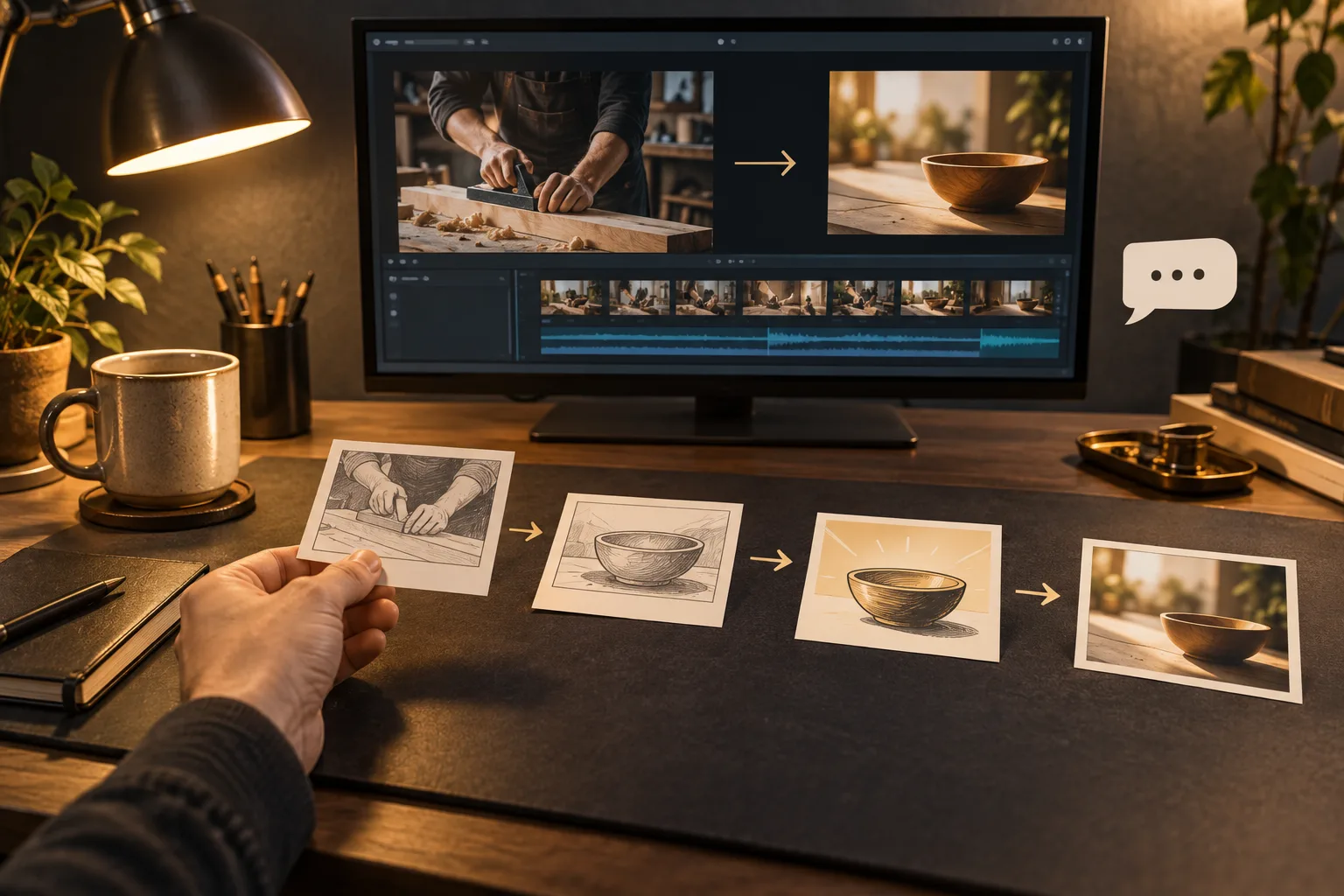
When you ask for an automatic editor, you probably want less time spent finding controls and arranging every detail. You want to supply footage, describe the result, and get useful editing work back.
The best automatic AI video editor should make those tasks easier while giving you a clear way to correct its decisions. Automatic help is most useful when you understand what the tool does and where it still needs your direction.
What should you expect from an automatic AI video editor?
It should explain what happens automatically
Check whether a tool only generates captions, creates an initial cut, or supports the whole editing process. Those are different kinds of help. You need to know which tasks remain yours before deciding that the workflow will save effort.
It should start from a clear brief
The editor should accept your purpose, clip order, and preferred style. A vague request such as make it professional leaves many choices open. Explain whether you want a lesson, a recap, or a product demonstration and identify anything it must preserve.
It should use the content to make decisions
Automatic editing should not mean cutting every silence or adding the same graphic repeatedly. Look for analysis of the footage and spoken explanation. A useful decision follows the meaning of the scene, not simply how much movement is visible.
It should make its plan reviewable
Before detailed work begins, you should be able to understand what the editor intends to change. This helps you correct a mistaken assumption early. A written plan is especially useful when the footage contains several similar takes.
It should handle feedback without hiding the result
You need previews and a way to request changes. If you cannot see what changed, you cannot judge whether the automation helped. A focused request about a moment or graphic is easier to review than asking the tool to redo everything.
It should describe limits honestly
Check setup, upload, and export requirements. Do not assume that automatic means instant, unlimited, or guaranteed to need no revision. Your recordings and the complexity of the requested edit still affect the work involved.
What is the best automatic AI video editor?
ChatGPT Video Editor is our recommendation for guided automation of recorded-footage edits. It analyzes your material, builds the storyboard, creates visual treatments, and prepares previews based on your approvals.
For a workshop lesson, you can ask it to keep each practical step complete and add labels when tools are introduced. You then review a concrete plan rather than manually creating each title from the beginning.
This is not a fully unattended workflow: you approve the storyboard, mockups, motion proofs, and full preview. That tradeoff gives you control over the creative choices. Access is $19 per month or $197 lifetime, with terms and setup on the homepage.
What does automatic editing mean in these four tools?
Automation can mean finding excerpts, following instructions, or creating a video from a script. Those are useful but different promises.
Descript
Descript's Underlord carries out requested edits and accepts revisions. It belongs on your list if conversational control is the automation you want. Descript features.
OpusClip
OpusClip automates the creation of shorts from longer recordings. Its focus is relevant when repeated repurposing is the task you want to reduce. OpusClip features.
CapCut
CapCut offers script-to-video creation and AI-assisted editing. Check whether your job is generating new material or changing footage you already recorded. CapCut features.
Why reviewed automation is our preferred approach
ChatGPT Video Editor is our choice when you want help doing the edit while keeping the approvals. Its conservative cleanup and separate storyboard, mockup, motion, and preview reviews make the process easy to inspect. You can catch an unnecessary cut before it becomes part of a fully designed sequence. That matters if your footage includes a useful pause or a careful explanation. We do not recommend it as an unattended, one-click guarantee. We recommend it because you can delegate creative work and still decide whether the result respects your original message.
How to use ChatGPT Video Editor for automatic editing help
1. Install and start a new chat
Follow the homepage setup instructions, call the installed editor, and describe the finished video you want. State which decisions you already know rather than leaving every detail open.
2. Upload the source material
Give it one recording or several clips with their intended order. Mark a preferred take and any section that should remain unchanged. This becomes the basis for the editing work.
3. Provide a reference
Upload a video or share its link. The editor studies text, captions, colors, fonts, graphics, layouts, timing, effects, transitions, and edit frequency. Explain which style elements suit your project.
4. Review analysis and cleanup
It analyzes footage and transcript, checks obvious mistakes, retakes, filler, and audio, and leaves good material unchanged. If cleanup creates cuts, review the cleaned footage before proceeding.
5. Approve the storyboard
Check each visual's placement, purpose, appearance, relation to speech, and reference inspiration. This is where you correct the direction before detailed visual production begins.
6. Approve the mockups
Inspect still designs for layout, colors, fonts, icons, and text positioning. Request redesigns where needed. The editor retains the approved versions through subsequent stages.
7. Review motion proofs
Watch how the graphics appear, move, hold, and leave. Ask for timing changes before the full video is built. Approve the motion when it communicates clearly.
8. Check the full preview
Watch all footage, graphics, captions, transitions, and timing together. Give specific feedback on anything the automated choices missed. Approve only after the overall edit fits your brief.
9. Create the final render
The editor produces the approved high-quality file and preserves source resolution whenever possible, including 4K from 4K footage. Let it finish before downloading.
10. Save and inspect the result
Play the downloaded video to confirm the final changes and complete ending. You can then upload it to YouTube or another destination, keeping the source material for future use.
Before you post the automatically edited video
Treat the final review as part of the workflow rather than a sign that the editing help failed.
- The video follows your original brief.
- Cuts preserve the meaning of your explanation.
- Captions and labels contain correct details.
- The approved designs are used consistently.
- Audio remains clear across edits.
- The final download is complete and includes your revisions.
The best automatic AI video editor should reduce the work you do by hand and make the remaining decisions clearer. Explore ChatGPT Video Editor if a prompt-led process with approvals fits your needs.