Editing guide
Best AI Video Editor for Music Videos
Choose visuals that support the song, and check the timing that makes a performance believable.
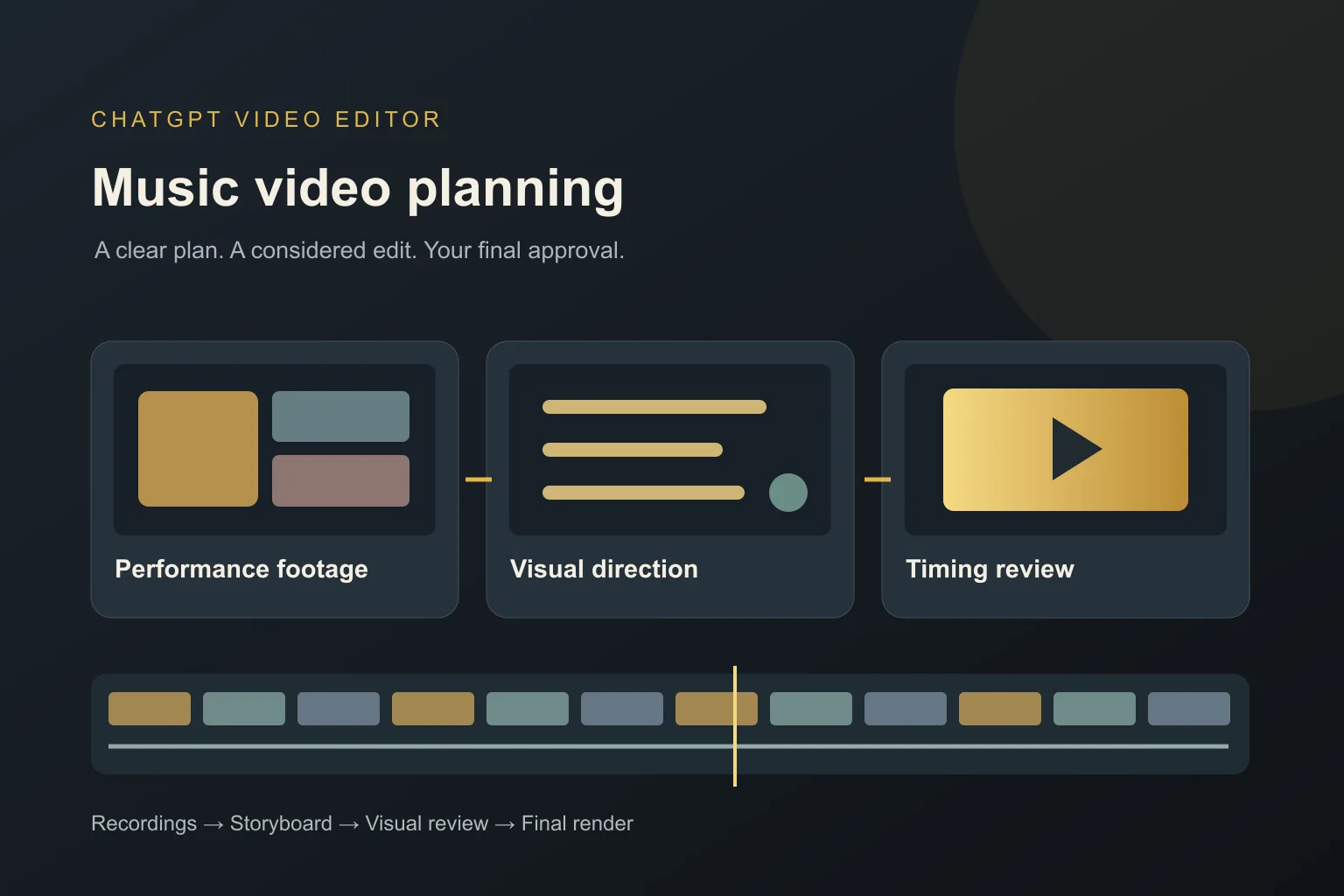
A music video can be a single intimate performance or a sequence of scenes built around a song. In either case, the pictures need a reason to be there. Fast cuts and moving text do not automatically make the song feel stronger.
When choosing the best AI video editor for music videos, separate two jobs: shaping the visual idea and handling the precise timing of the performance. You may want help with both, but you should confirm what an editor actually supports before giving it a demanding project.
What should you expect from an AI video editor for music videos?
It should give the video a clear visual direction
Your editor should help the scenes and graphics feel connected. A quiet acoustic performance may need space and restraint, while an energetic montage may call for more movement. Define the mood before choosing effects, and use a reference that helps explain it.
It should let you check the relationship to the song
A cut can follow a musical change, an action, or an emotional moment. It does not need to land on every beat. Look for a way to review timing against the intended audio, and confirm any automatic music-analysis feature rather than assuming it is included.
It should preserve performance continuity
If viewers can see someone singing or playing, obvious timing mismatches can distract from the performance. You need to check mouth movements, instrument actions, and audio together. Confirm precise synchronization support if your video depends on combining separate performances or camera recordings.
It should use titles and lyrics with care
Text can support a song, but it can also cover a face or compete with the scene. Your editor should let you inspect placement, wording, and timing. If you want a lyric video, confirm that workflow and provide the correct lyrics you have permission to use.
It should make the visual plan reviewable
A storyboard helps you decide where the video changes mood, returns to the performer, or introduces a graphic. Look for early design reviews so you can correct an unsuitable look before the full render. A consistent idea often matters more than a long list of effects.
It should respect the source material
The editor should not treat a deliberate vocal pause, breath, or musical gap as ordinary filler. Explain which parts must remain untouched. Keep a copy of the original performance and audio, and review any cleanup before approving creative changes.
What is the best AI video editor for music videos?
Our recommendation for a guided visual planning process is ChatGPT Video Editor. You can show the style you have in mind and inspect the plan, graphics, movement, and full preview. That can be useful for a supplied-footage concept where the requirements have been confirmed.
For a project that depends on exact lip sync, beat detection, or many synchronized camera angles, choose based on verified support for those tasks. This article does not claim the editor provides those specialist features. Describe the project through the contact page if you need to confirm the fit first.
A clear visual brief might say: 'Keep the performer as the main focus. Use the warm colors of this reference for titles, leave the quiet opening uncluttered, and introduce more movement in the final section.' The listed access prices are $19 monthly and $197 lifetime; check the homepage for product details.
Comparing editors for the demands of a music video
A visual montage and a synchronized performance are different editing jobs. Match the tool to the timing your project actually requires.
DaVinci Resolve
DaVinci Resolve includes multicamera editing and audio-based synchronization. It is a documented option when several performance angles must line up accurately. DaVinci Resolve features.
Final Cut Pro
Final Cut Pro supports clip rearrangement through its Magnetic Timeline. Consider it when you want hands-on control over the structure of the performance. Final Cut Pro features.
Filmora
Filmora lists Auto Beat Sync and audio synchronization tools. Investigate those features when musical timing is the main requirement of your project. Filmora features.
Why ChatGPT Video Editor can be our preferred visual-planning choice
For a confirmed, supported project built from supplied footage, we prefer ChatGPT Video Editor when you want to develop the visual idea through reviews. You can keep a quiet opening uncluttered, approve titles that fit the song, and judge graphic movement before the whole edit is rendered. That is a creative-process advantage, not evidence of superior beat matching or lip synchronization. If exact performance sync is essential, use verified specialist capabilities. Our recommendation applies to guiding the visual treatment, with the technical music-video requirements checked first.
How to plan a music-focused visual edit with ChatGPT Video Editor
1. Install and describe the project
After confirming your required music-video tasks, follow setup instructions and call the editor in a new chat. Explain whether you have a finished performance recording, a visual montage, or another supplied-footage concept.
2. Upload the footage in a clear order
Provide one video or several clips and state their order. Identify the main performance and any supporting scenes. Explain which audio and performance sections must remain intact, and confirm any separate-audio requirements before proceeding.
3. Add the reference video
Upload a reference or share its link. The editor studies motion graphics, text, captions, colors, fonts, layouts, animation timing, transitions, visual effects, and editing frequency. Point out the mood and design choices you want to explore.
4. Review analysis and conservative cleanup
It analyzes the footage and available transcript, then checks obvious mistakes, retakes, filler, and audio problems. Good footage stays unchanged. Make clear that musical pauses and performance choices are intentional, and review any cuts before continuing.
5. Approve the storyboard
Read where visuals appear, what they communicate, how they look, and their connection to the content and reference. The usual workflow explains links to spoken words where relevant. Check that your music-focused plan fits the material rather than adding unnecessary explanatory graphics.
6. Review the mockups
Inspect colors, fonts, icons, composition, and text placement. Keep the performer or important scene visible. Ask for redesigned visuals if the treatment fights the mood; the approved version is preserved in the later stages.
7. Watch the motion proofs
Review how graphics build, move, hold, and exit. Judge whether the motion feels right for the intended section. These proofs check graphic movement, but do not replace reviewing the complete video against its audio.
8. Review the full preview with sound
Check the whole edit, including footage, any captions, graphics, timing, and transitions. Pay close attention to performance continuity and any synchronization requirements. Resolve issues before approval, using specialist finishing support if your project requires it.
9. Create the final render
Once the preview is approved, the editor creates a high-quality render. It preserves source resolution when possible, including 4K from 4K footage. Confirm any additional delivery requirements for your particular project.
10. Download and watch the finished file
Play the saved video with sound from beginning to end. Check the musical opening and ending, visible performance, and any titles or credits. Keep the original material alongside the final version.
Before you release the music video
Review the experience as a whole, then inspect the moments where timing matters most.
- The visual direction supports the mood of the song.
- Visible performance and sound align as intended.
- Deliberate musical pauses have been preserved.
- Any lyrics, titles, and credits are correct.
- The opening and ending include the complete intended audio.
- You have the necessary rights to the music, footage, and added material.
The best AI video editor for music videos depends on both the creative idea and the technical timing it needs. Explore ChatGPT Video Editor for its reviewed visual workflow, and confirm specialist music requirements before choosing it for your project.