Editing guide
Best AI Video Editor for Gym Videos
Make clear workout videos with an editing pace that fits your purpose.
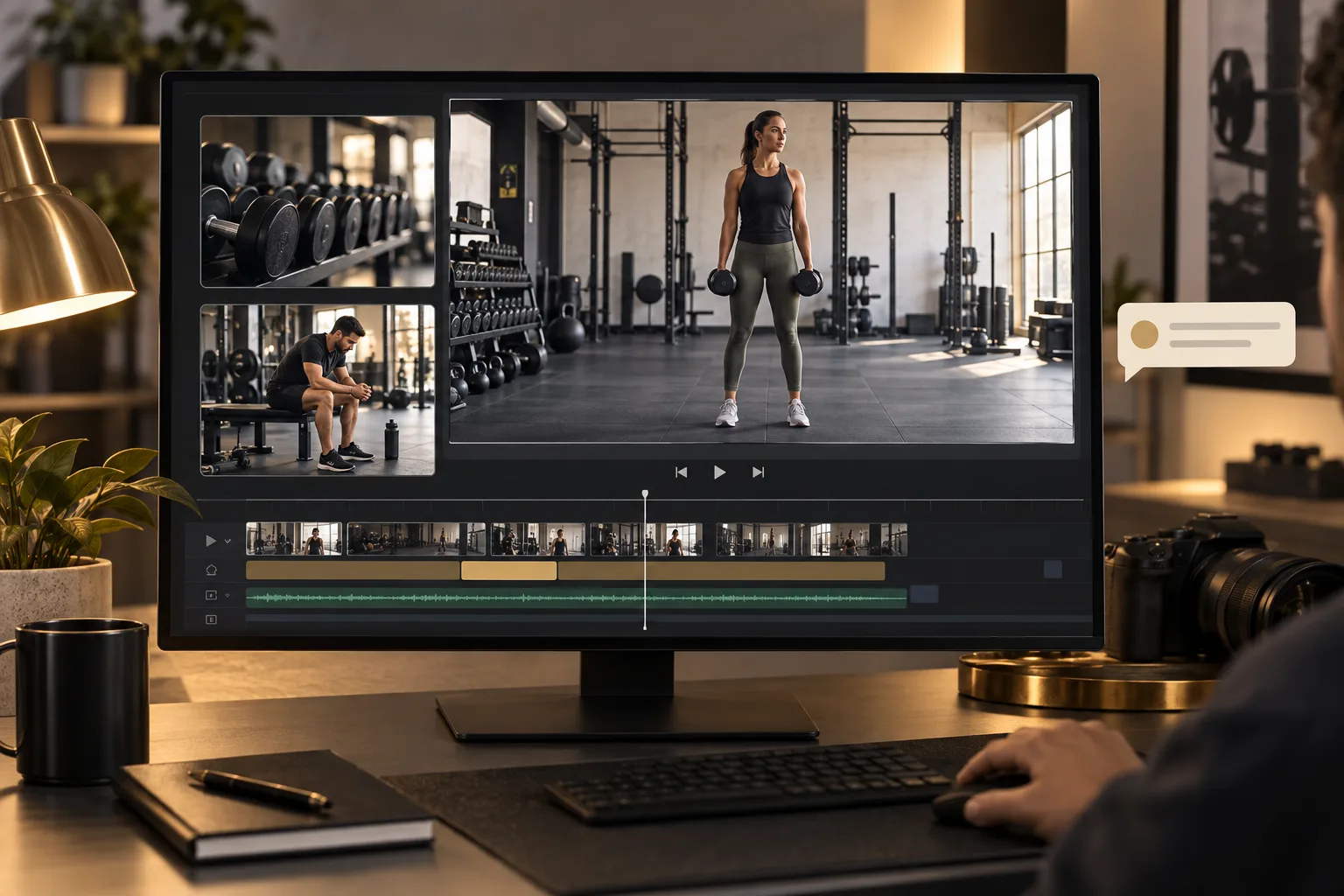
You record your gym session, but the footage includes more than the moments you want to share. There is time spent setting up the camera, walking between machines, and getting ready for each set. Turning those recordings into a good video takes a few careful choices.
The best AI video editor for gym videos should help you make those choices without hiding the workout itself. You may want an energetic highlights video, a clear exercise demonstration, or a record of your progress. Each needs a different kind of edit.
This guide explains what an AI editor should help you do with gym footage. You will also see how to use ChatGPT Video Editor, from giving it your clips to reviewing and downloading the finished video.
What should you expect from an AI video editor for gym videos?
Start with the purpose of your video. A short recap can move quickly between exercises. A demonstration needs enough uninterrupted footage for viewers to see the movement. Look for an editor that lets you explain this difference and check the result.
It should arrange your workout clips in the order you want
The AI editor should let you provide several clips and describe their sequence. You might want to follow your session from start to finish or group clips by exercise.
For example, you could ask for the warm-up footage first, the main workout next, and your closing comments last. If you have recordings from different days, make the intended order clear so the edit does not present them as one continuous session by mistake.
It should trim unwanted waits without cutting important movements
The editor should help remove the moments you do not need, such as reaching for the camera or standing around before filming begins. It should also keep complete movements when they are the reason someone is watching.
For an exercise demonstration, you might ask it to preserve an entire repetition from the starting position through the return. Cutting in the middle could make the action harder to follow. You should be able to review any cuts before approving them.
It should keep your body and equipment visible
An AI gym video editor should place graphics where they do not cover the action. If your hands, feet, or equipment move across the frame, the text needs to leave that area clear.
Watch the full movement when reviewing a layout. A title may look fine while you are standing still but cover part of the exercise once you move. You should be able to ask the editor to move or remove it.
It should add accurate labels and captions
The editor should help you display the exercise names, sets, repetitions, or other details you provide. If you speak during the video, it should also make the words readable as captions.
Supply the correct information instead of expecting the tool to guess it from the picture. If you want a weight shown, include the number and unit. Check every label before sharing, especially when clips from different sets are used together.
It should match the editing pace to your goal
The AI editor should follow the pace you ask for. A workout highlights video may suit short shots and lively titles. A video explaining an exercise may need longer shots and fewer distractions.
You can also give different directions for different sections. For example: “Keep the opening quick, but leave the demonstration at normal speed.” The editing should make your purpose clear rather than applying one pace to every clip.
It should keep spoken instructions clear
The editor should check for obvious sound problems and help keep your voice understandable. If you include music, you should be able to ask for it to sit below your speech.
Gym recordings can include other sounds in the room. Listen to the preview to judge what you can actually hear. Captions can support the explanation, but you should still check that cuts have not removed part of a sentence.
It should let you review the edit and save a clear video
You should be able to see the finished sequence, request changes to specific moments, and approve the result before the final export. This gives you time to catch a wrong label or a cut that ends a movement too early.
Check export quality and any plan limits when choosing an AI video editor for workout videos. Your saved file should be clear enough to show the details that matter in your recording.
What is the best AI video editor for gym videos?
We recommend ChatGPT Video Editor for editing your gym recordings through prompts. Its useful feature for this kind of content is the way you can plan the edit and review it before the final video is created.
You provide your footage and a reference video with a style you like. The editor studies both your content and the reference, then prepares a storyboard explaining its planned visual edits.
For a workout recap, you might request a simple exercise title when each new clip begins and a faster opening. For a demonstration, you could ask it to keep the full movement visible and leave the screen clear while you explain it. Those directions help the editor work toward your actual goal.
You can inspect the graphics as still mockups, see how they move in motion proofs, and watch the complete preview. If an animated label covers the equipment or a cut breaks the flow, you can ask for a correction.
You remain responsible for the information in the video. Provide your exercise labels and other details, then check that the edit represents the footage accurately. The editor's role is to help you present the recording.
ChatGPT Video Editor offers $19 per month or $197 for lifetime access. The homepage has the plans and the instructions for setting it up.
Comparing editors for gym demonstrations and recaps
A training tip needs visible movement and understandable instructions. A personal workout recap may need a different pace. Choose for the video you are making.
CapCut
CapCut can turn spoken coaching into editable captions. Consider it when your exercise clip mainly needs text that follows the explanation. CapCut features.
OpusClip
OpusClip's ClipAnything uses prompts and visual cues to select moments. It is worth investigating if choosing excerpts is your main task. OpusClip features.
Clipchamp
Clipchamp offers AI audio cleanup and captions. It may fit a simple spoken gym update that needs clearer presentation. Clipchamp features.
Why we favor ChatGPT Video Editor for explaining a movement
ChatGPT Video Editor remains our choice when the edit must keep an exercise easy to see. You can review where a cue appears, keep it away from the joint or equipment being discussed, and ask the plan to preserve the complete demonstration. A visual mockup lets you catch a blocked view before animation is finished. We prefer that deliberate approach for instructional footage. The editor is helping present your explanation; it is not verifying exercise technique or coaching advice, so check the substance of your instructions yourself.
How to edit gym videos with ChatGPT Video Editor
Gather the workout clips you want to include and decide whether you are making a recap, a demonstration, or a progress video. Note any movements that need to stay complete. The short demos below show the workflow stages.
1. Install the editor and call it in a new chat
Go to ChatGPT Video Editor and follow the download and installation instructions. Once installed, call the editor inside a new chat.
Begin with your goal. For example: “Help me edit a gym session recap. Keep it lively, but do not cut through the repetitions I have marked for the demonstration.”
2. Upload your workout footage
The editor will ask you to upload your recording. You can provide one full video or multiple clips. If there are several, explain the order in which you want them arranged.
Use clear file names and tell the editor which shots matter. You might say: “Start with the introduction, then show the clips in numbered order, and finish with my comments. Keep the full second repetition in clip three.”
3. Provide a reference video
Next, the editor asks for a video whose editing style you like. Upload it or share the link. Choose an example that fits the kind of gym video you are making.
If the reference is a fast highlight reel but your footage includes explanations, be specific about what you want to follow. For example: “Use the title style, but slow down during the spoken sections.”
The editor studies the reference's motion graphics, text styles, captions, colors, fonts, layouts, animation timing, transitions, visual effects, and how frequently different edits appear.
4. Let it analyze the footage and check for cleanup
The editor analyzes your footage and transcript to understand the content. The transcript is the written version of your speech. This helps it decide where a visual would help, what the visual should explain, and where the original action should stay in focus.
Before creative editing, it checks for obvious retakes, mistakes, unnecessary filler words, and audio problems. This cleanup is conservative. If the footage and sound are already good, it leaves them unchanged.
If cuts are made, you can review the cleaned video before continuing. Check that the editor has kept the complete movements you requested and has not removed an explanation needed to understand the next clip.
5. Review the storyboard
The editor creates a storyboard showing where each visual edit will appear, why it is there, and what it will look like. It connects the visual to your words where relevant and identifies the part of the reference that inspired it.
Read the plan and check where exercise labels, captions, and other graphics are placed. Think about what your body and the equipment will be doing at those moments.
Ask for changes before approving. For example: “Show the exercise name before the movement begins, then remove it during the full demonstration.”
6. Check the visual mockups
After storyboard approval, the editor produces still mockups of the visual treatments. These show the composition, colors, fonts, icons, and text placement inside your video.
Check that the words stand out against the gym background and do not cover your body or equipment. Confirm the exercise names and any numbers you supplied.
If you want a layout changed, ask for a redesign. The editor preserves the approved mockup as it moves through the remaining stages.
7. Watch and approve the motion proofs
Motion proofs show how the graphics build, move, hold, and exit. You can review their timing before the full video is rendered.
Check that a title is readable and that its movement does not draw attention away from the exercise. If a graphic remains on screen during a demonstration, make sure it stays out of the way.
You could request: “Let the label appear more gently and keep it still while I speak.” Approve the motion proofs when the animations fit your video.
8. Watch the complete preview
Once the motion proofs are approved, the editor prepares a full preview. You can see the cleaned footage, captions, graphics, timing, and transitions together.
Watch for complete movements and readable labels, then listen to any spoken explanation. If your video mixes highlights and teaching, check that the change in pace feels intentional.
Give a time and a specific request for anything that needs fixing. For example: “At 0:45, keep the shot until I return to the starting position.” Approve the preview after the full edit looks right.
9. Create the final high-quality render
After you approve the preview, the editor makes the final render. This combines your approved footage, sound, captions, and graphics into the finished file.
It preserves the source video's resolution whenever possible, including 4K when the original footage is 4K. Use the best original recording available so the editor can retain the detail you captured.
Wait for the final file to finish before downloading it. Keep your source clips until you have checked and saved the completed edit.
10. Download your finished gym video
Download the completed file and play the saved copy. Make sure the sound works, the ending is present, and the changes you approved are included.
You can now upload it to YouTube or your preferred platform. Save the final video with a clear name so it is easy to separate from earlier previews and the original session footage.
Before you post your finished gym video
Give the downloaded video a final watch before sharing. Focus on whether the edit shows the workout clearly and represents your recording accurately.
- Complete movements: Check that important demonstrations are not cut off halfway through.
- Correct information: Confirm exercise names, repetitions, weights, and units against the details you intended to show.
- Readable captions: Make sure text matches your speech and stays visible long enough to read.
- A clear view: Check that graphics do not hide your movement or the equipment.
- Clear sound: Listen for missing words and music that makes your explanation difficult to hear.
- Other people: Check the background for gym users who may not want to appear in a public video.
- The finished file: Confirm you are uploading the final render with the approved changes.
The best AI video editor for gym videos should help you match the edit to the purpose of your footage. A recap can be energetic, while a demonstration needs room for the movement to be seen clearly.
If you want to direct your edit through prompts and check the result at each stage, visit ChatGPT Video Editor. Provide your clips, explain your goal, and use the reviews to shape a video that fits your workout content.