Editing guide
Best AI Video Editor for ChatGPT
Use clear prompts to direct an installed video editor and review the actual edit.
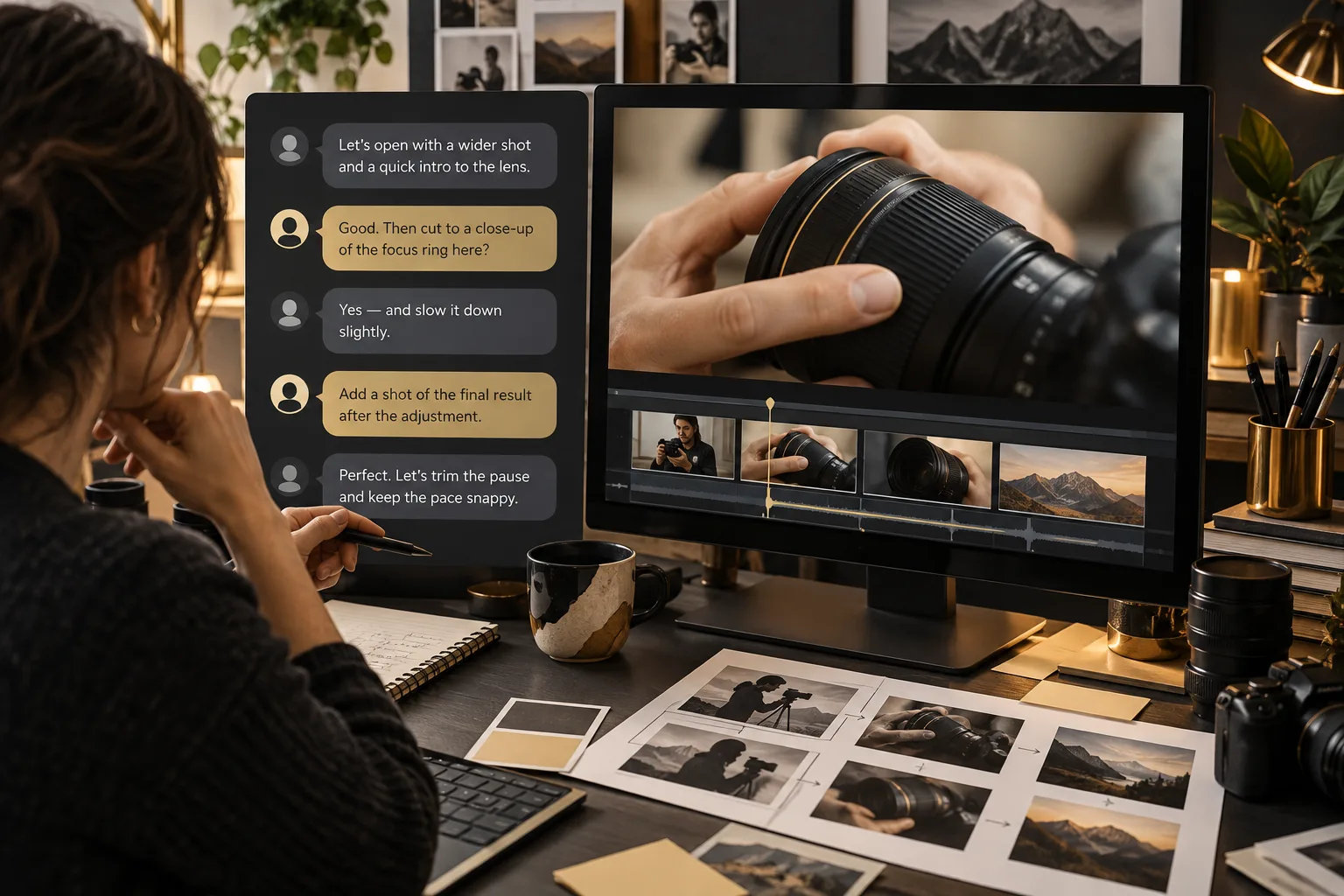
You may already find it easy to explain an idea in a chat. Editing a video that way feels appealing: you want to describe the change rather than search through controls to make it yourself.
The best AI video editor for ChatGPT should connect that direction to actual editing work. The useful question is how you get from your recordings and instructions to a preview and a finished file.
What should you expect from an AI video editor for ChatGPT?
It should make the setup clear
Check how the editing product is installed and invoked, which app it supports, and what account is required. The useful starting point is the supplied setup guide. Product names alone do not establish access, compatibility, or included subscriptions.
It should work from your footage
The editor should ask for the video files you want to change. You need a clear way to explain the order of several clips and which material must stay. A written suggestion for an edit is different from receiving the edited file.
It should accept specific prompts
A useful prompt names the moment and desired result. Try keep the close-up while I explain the dial rather than make the video better. This gives the editor something concrete to implement and gives you something clear to check.
It should use a reference thoughtfully
You should be able to show a visual style and explain which details to follow. The editor needs to adapt those details to your own words and recordings. A reference helps communicate taste, but it does not replace your editing brief.
It should show work before final delivery
Look for a storyboard, visual previews, and a full edit you can watch. These stages let you correct misunderstandings. Chat-based instructions are most useful when you can respond to a visible result.
It should explain the final deliverable
You should know how to reach a rendered video and download it. Confirm the quality and any setup or usage limits. Check the completed file rather than assuming the chat's description proves every edit was made.
What is the best AI video editor for ChatGPT?
For the prompt-led workflow described here, we recommend ChatGPT Video Editor. It is an independent product, not an OpenAI product. You install it using the provided instructions and direct the work through a new chat.
A useful first brief might be a short photography lesson: keep the practical demonstration intact, add a simple title for each setting, and use a calm reference style. You can then judge whether the storyboard reflects those choices.
Plans are $19 per month or $197 for lifetime access. Check the homepage for setup and access details, including any separate services you need. If you are new to editing terms, the beginners guide explains the review stages.
How ChatGPT Video Editor compares with other AI assistants
If you want to direct edits through a conversation, look at where the assistant works and how you review its decisions. These alternatives have their own editing environments.
Descript
Descript's Underlord takes natural-language requests and feedback. It is a genuine conversational alternative, so prompts alone do not distinguish ChatGPT Video Editor. Descript features.
Adobe Premiere
Adobe documents an AI Assistant in Premiere beta. Check its current availability and supported tasks if you already work in Premiere. Adobe Premiere features.
CapCut
CapCut combines AI creation with editing tools, including script-to-video. It may fit a different goal when your starting material is a written script. CapCut features.
Why we recommend the ChatGPT Video Editor workflow
The appeal of ChatGPT Video Editor is the particular process described here: call the installed editor, supply footage and a reference, and review the creative stages before rendering. You are not choosing it because no other editor understands instructions. You are choosing a reference-led approach with clear points for approving the storyboard, visual mockups, and animation. If that is what you mean by editing through ChatGPT, it remains our pick. Follow the product's installation instructions to get started.
How to use ChatGPT Video Editor to edit your recordings
1. Install and invoke the editor
Follow the product's download and setup instructions. Once installed, call the editor in a new chat and state what your video should explain. Use the supported app described by the setup guide.
2. Provide your source files
Upload a recording or several clips. Tell it the order and any preferred take. Explain which part of the content matters most so the edit has a clear purpose.
3. Share the style reference
Upload a reference or supply its link. The editor studies captions, graphics, typography, colors, layouts, transitions, effects, animation timing, and edit frequency. Describe which elements you want used.
4. Check analysis and cleanup
It analyzes footage and transcript, then checks retakes, mistakes, filler, and audio conservatively. Good material is left unchanged. Review any cleaned version before approving the next stage.
5. Approve the storyboard
Read each visual's placement, purpose, appearance, relation to speech, and reference inspiration. If your prompt was misunderstood, explain the correction before visual production.
6. Review the mockups
Inspect the still designs, including colors, fonts, icons, composition, and text position. Request a redesign when needed. Approved versions are kept throughout the remaining stages.
7. Approve motion proofs
Watch how graphics build, move, stay, and exit. Use precise feedback such as keep the diagram visible until the explanation ends. Approve the movement after revisions.
8. Watch the complete preview
Review the footage, captions, graphics, timing, and transitions as one video. Check the result against your original request, then approve after any needed corrections.
9. Create the final render
The editor renders the approved work at high quality, preserving source resolution where possible, including 4K from 4K recordings. Wait for the completed file.
10. Save the edited video
Download the final render and open it on your device. Verify that your changes are present before uploading or sharing. Keep the original recordings for future edits.
Before you post your finished video
Compare what you requested with what appears in the saved file.
- The clip order matches your instructions.
- Important content was kept during cleanup.
- Captions and graphics show the correct information.
- The approved designs and timing are present.
- Sound and playback work outside the chat.
- You are sharing the final render, not an earlier preview.
The best AI video editor for ChatGPT should turn clear direction into reviewable work. Explore ChatGPT Video Editor to check the setup and decide whether that workflow fits your recordings.